
KKull Studio

Android scrolling

BlinkRoll

Keep reading long screens without repeating the same swipe. Use intentional eye blinks to scroll up or down in compatible Android apps.

Free core eye input · Banner ads · On-device camera analysis

BlinkRoll: Scroll with a blink
Up and downIntentional blinks become vertical swipes
On your Android deviceDetection images are not stored or uploaded
For compatible appsThe screen must support vertical swipes

See BlinkRoll in action.

Watch the product demonstration, then follow the setup below. Short-video feeds, vertical comics, and long articles are the intended use cases.

Player not loading? Watch on YouTube ↗

Ready to try it? Install the app, then complete the setup below.

Get it on Google Play

Start in three steps.

Install BlinkRoll from Google Play, open it, and complete the required setup on your Android phone.

  1. 01

    Allow camera access

    The front camera detects intentional eye blinks while detection is active. Camera images stay on the device.

  2. 02

    Enable accessibility

    Follow the app's prompt to enable its Android Accessibility Service. It sends vertical swipe gestures for scrolling.

  3. 03

    Choose a direction and start

    Choose the scroll direction, start detection, then return to a compatible app. Blink intentionally when you want the screen to move.

Not responding? Check these first.

Try the same vertical swipe by hand. If the screen cannot scroll that way, an eye-input gesture cannot make it scroll. Choose the matching direction in BlinkRoll. Check that camera permission and the Accessibility Service are enabled. Keep your face in view with even lighting, and check the app's detection state before trying another intentional blink.

How do I pause or stop?

Return to BlinkRoll and stop detection when you no longer want eye input. Screen-off and lock protection remains active. Pause eye input yourself before typing or doing anything where an unwanted swipe would be disruptive.

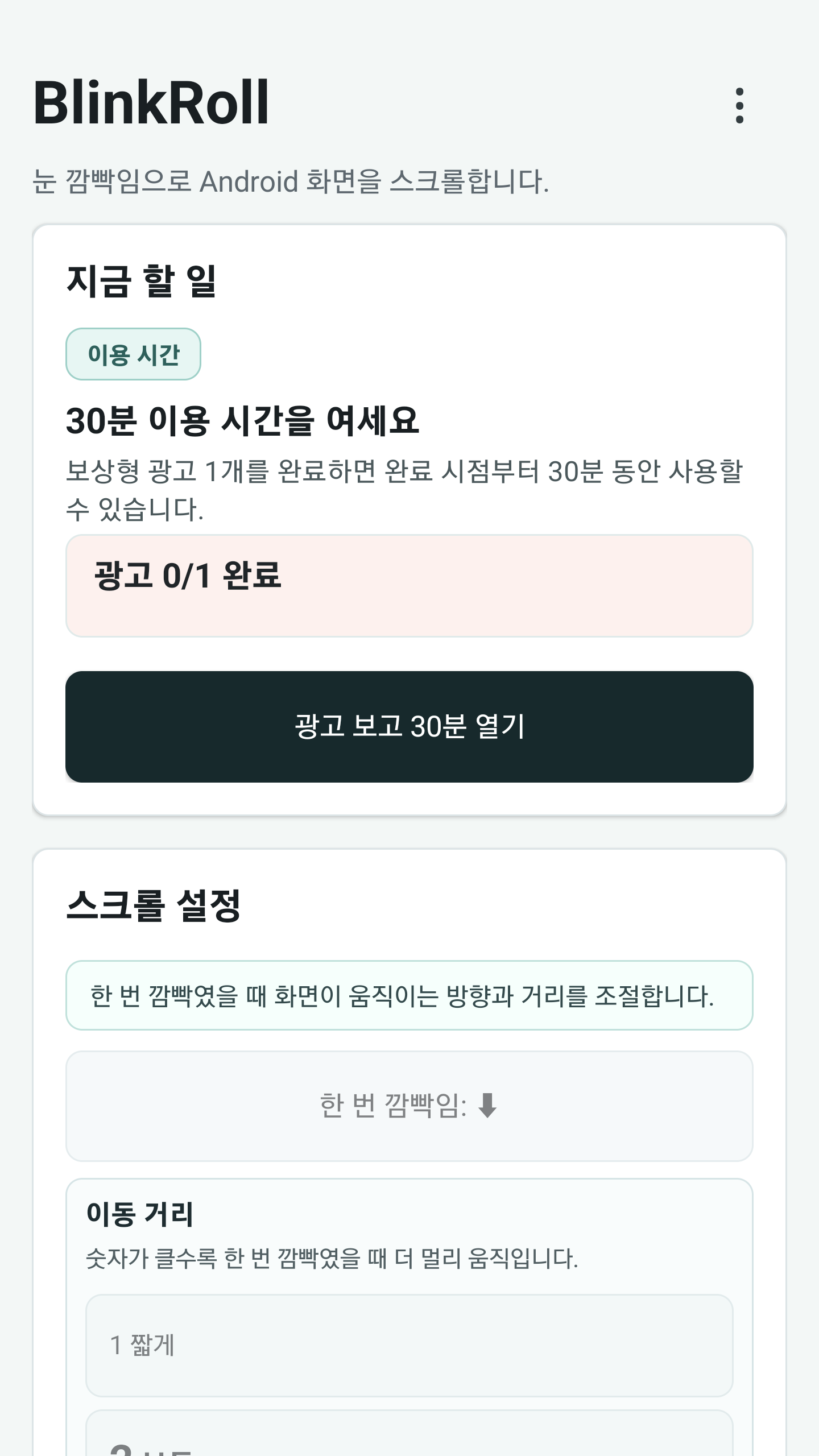
BlinkRoll Android app settings and detection controls

Your camera stays on your phone.

The front camera analyzes eye blinks on the Android device. BlinkRoll does not store or upload detection images or video.

Accessibility is used for swipe gestures, not for taps or text entry. External app types and typing states are not inspected.

Read the privacy policy →

A few things to know.

Check pricing, compatibility, and safety before your first session.

Is it free? What about ads and settings?

Core eye input is free with banner ads; no rewarded ad or 24-hour access pass is required. Indicator hiding is a free toggle. Automatic no-face sleep is opt-in and off by default; screen-off and lock protection remains active.

Which screens can it control?

Home and launcher eye input is allowed. The target screen must support compatible vertical swipe gestures; operation is not guaranteed in every app or launcher.

Commands are blocked on lock screens and when required permissions are missing or the accessibility service is disconnected. External app types and typing states are not inspected; pause eye input yourself when needed.

How should I use it safely?

BlinkRoll is an accessibility and convenience tool, not a medical, diagnostic, or treatment product. Stop and rest if your eyes feel tired, dry, painful, or uncomfortable. Do not use it while driving, walking, or doing a dangerous task.

Choose the right Blink app.

Each app has one main job. Pick the input that matches what you want to do.

AppMain actionBest suited to
BlinkRollScroll up and downShort-video feeds, vertical comics, and long articles
BlinkPageTurn pages left and rightEbooks, documents, sheet music
BlinkGameLook left and right to catch starsThirty-second rounds, ten stages

Try BlinkRoll on Android.

Start with a familiar screen that supports vertical swipe gestures.

Get it on Google Play